
How to publish your Aidtrade instant price estimator.
To get the most from Aidtrade's instant price estimator, follow these three simple but powerful publishing principles on your website.
These steps are designed to help you:
- increase lead conversion and attract higher-intent customers.
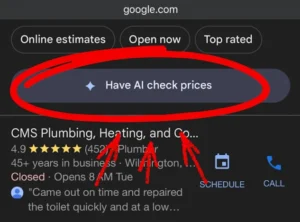
- align with Google’s new ‘Online Estimates’ filter or ‘Have AI get prices’ button for local services, where Google is now pushing local services to be transparent about their pricing.
- improve your visibility to potential leads in AI search tools like ChatGPT or Google’s Gemini, which only works if you’re transparent about your pricing factors.
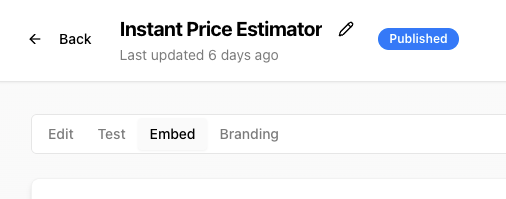
To access all publishing options for your estimator, go to your online account → Forms → Edit → Embed and you’ll see four publishing options.
Principle 1 — Place your estimator in high-impact locations
Where you embed your estimator matters just as much as having one. We recommend placing your Aidtrade form in at least one of these locations (ideally more):
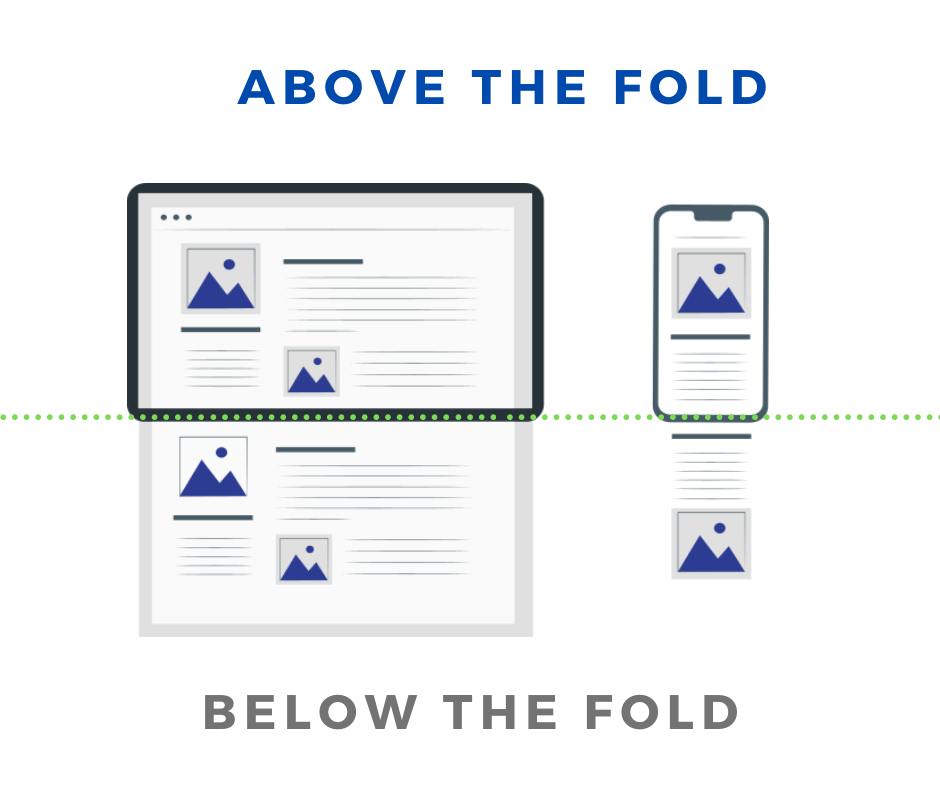
- ‘Above the fold’ on your homepage – the visible part at the top of your homepage without scrolling. Either as a button linking to your estimator (labelled “Get Instant Estimate”) or the form embedded directly on the page.
- As a floating button or popup – e.g. “Get Instant Estimate”. Grab the code from your online account so that, no matter what page a customer is on, they can access the estimator by clicking a button in the bottom corner.

- Any other key sections of your website – e.g. your Contact Us page, pricing page, and more.
You can also publish your estimator via a direct URL (good if you don’t have a website) or a QR code (great for flyers and business cards).

Why this works
Customers who want pricing will find it immediately, reducing friction and increasing qualified enquiries.
Principle 2 — Create a dedicated ‘Online Estimates’ page
Create a new page on your website: yourwebsite.com/online-estimates and clearly include ‘Online Estimates’ in the title of the page. On this page, embed your Aidtrade instant price estimator front and centre.
Why this is critical
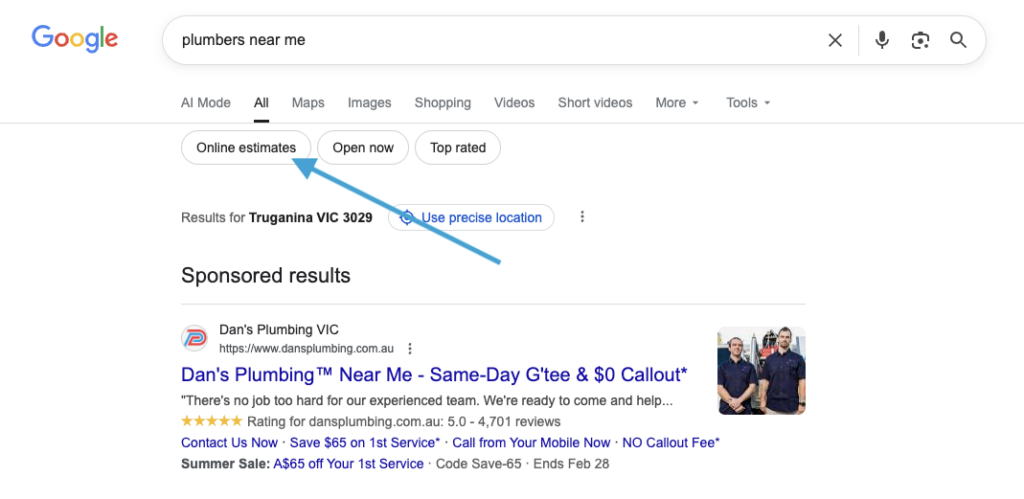
Google has introduced an ‘Online Estimates’ filter in local service search results. A dedicated page with this exact intent makes it much easier for:
- Google to understand your site;
- your business to rank for ‘online estimates’;
- customers to find you when they filter for instant estimates (e.g. typing “electrician near me” on Google and toggling the ‘online estimates’ filter).
This page should follow this structure:
- a simple intro such as: “Use our instant price estimator below to get a fast and transparent estimate now.”
- a brief explanation that you offer instant estimates
- your Aidtrade estimator form displayed clearly
- a few FAQs related to your pricing and services, linking to your pricing page (see Principle 3)
Principle 3 — Create (or improve) your ‘Pricing’ page for AI visibility
If you don’t already have a dedicated pricing page, create one now (e.g. yourwebsite.com/pricing). On this page, clearly explain:
- what factors affect your pricing
- why prices vary
- what customers should expect
- what some of the price ranges are for different offerings
For example, you might include sections like:
- “What affects electrical pricing?”
- “Why jobs can vary in cost”
- “How we calculate estimates”
Why this matters
Modern AI tools (including ChatGPT, Google AI, and other search assistants) scan websites to understand pricing patterns. A clear, transparent, and structured pricing page makes your business more likely to appear in AI-generated search results when people ask questions like:
- “Where can I find an HVAC installer in Melbourne to install an AC for around $1,000?”
- “How much does an electrician cost?”
- “How much should air conditioning installation cost?”
- “What affects plumbing prices?”
This also allows you to take advantage of Google’s new ‘Have AI get prices’ button in local service search results.
Once the above is set up, on this page you can either:
- embed your Aidtrade estimator again (see Principle 1), or
- simply link to your /online-estimates page (see Principle 2).
Both options work — choose whichever fits your site design best.
Want help embedding your estimator?
If you need technical assistance implementing any of the above, refer to the embed instructions inside your Aidtrade online account, or book a chat with our team and we’ll help you place it correctly on your site.